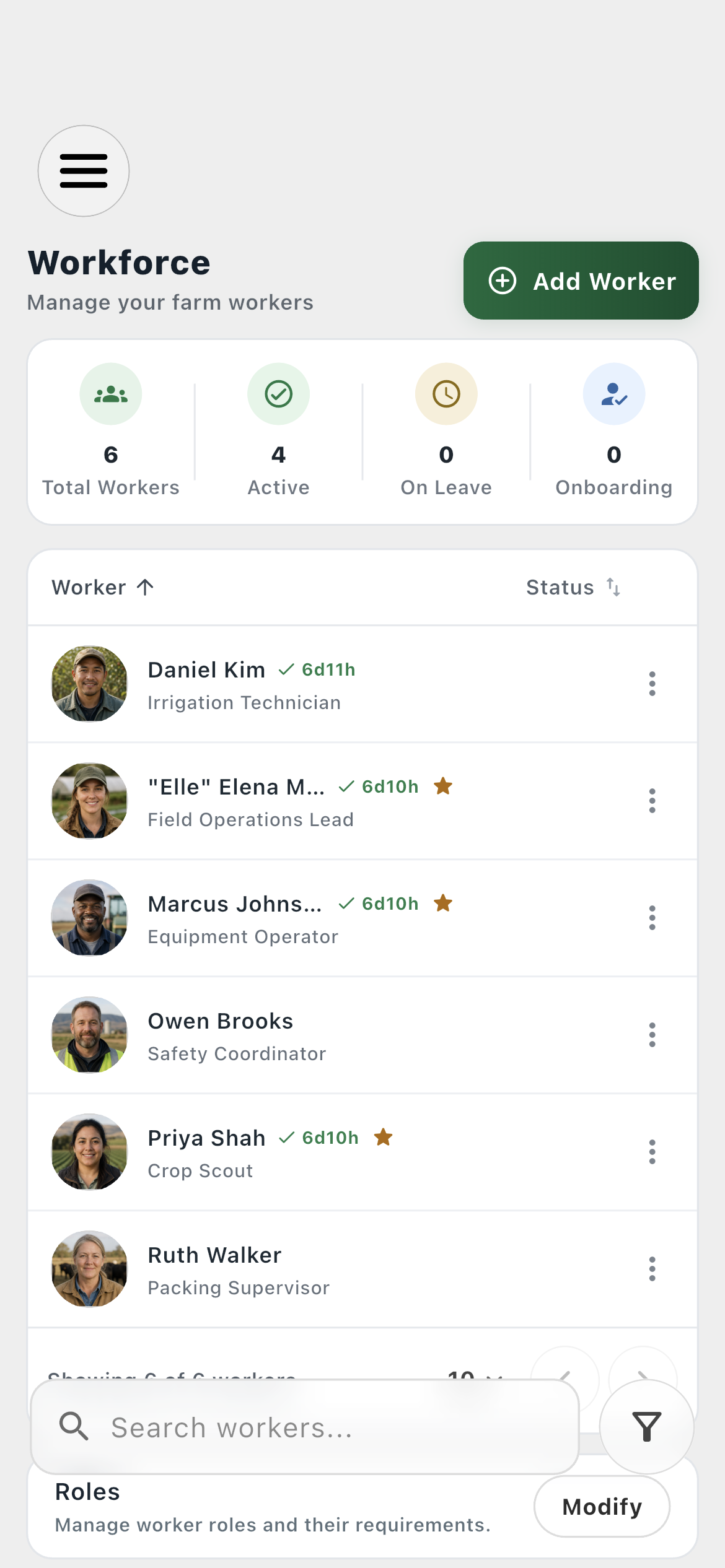
Farms can create a worker and send a targeted email invitation, or share their reusable Farm Code so an employee can request a relationship from their own account.
Email invitations
Reusable Farm Code
Farm approval queue
Worker record matching
Inside the app
See the workflow.
Actual Farmroute screens from the farm and employee demo accounts.
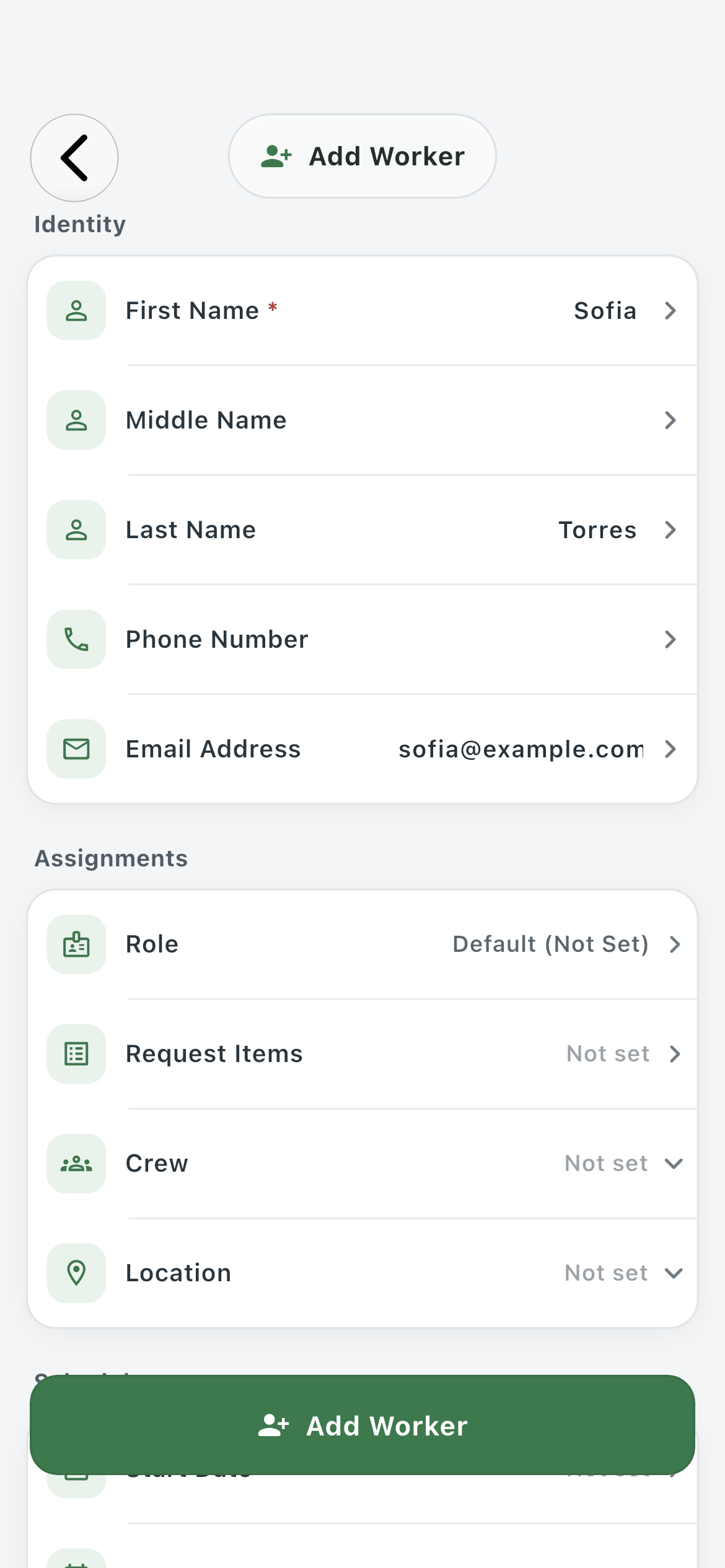
Email invitation01
A farm can create the worker record, include an email address, and send a targeted invitation for that exact record.
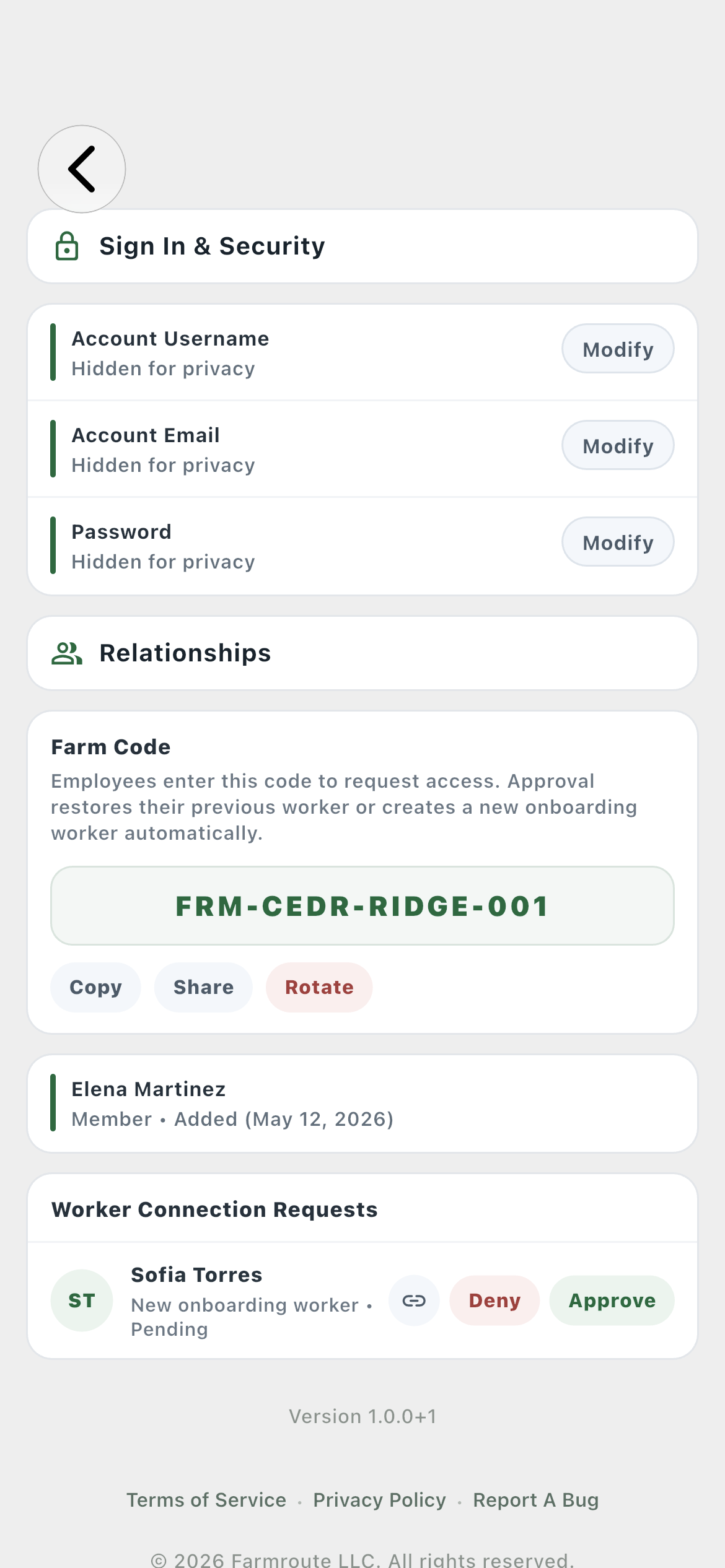
Farm Code & approval02
The reusable Farm Code lives in Sign In & Security, where the farm can also approve, deny, or match incoming requests.
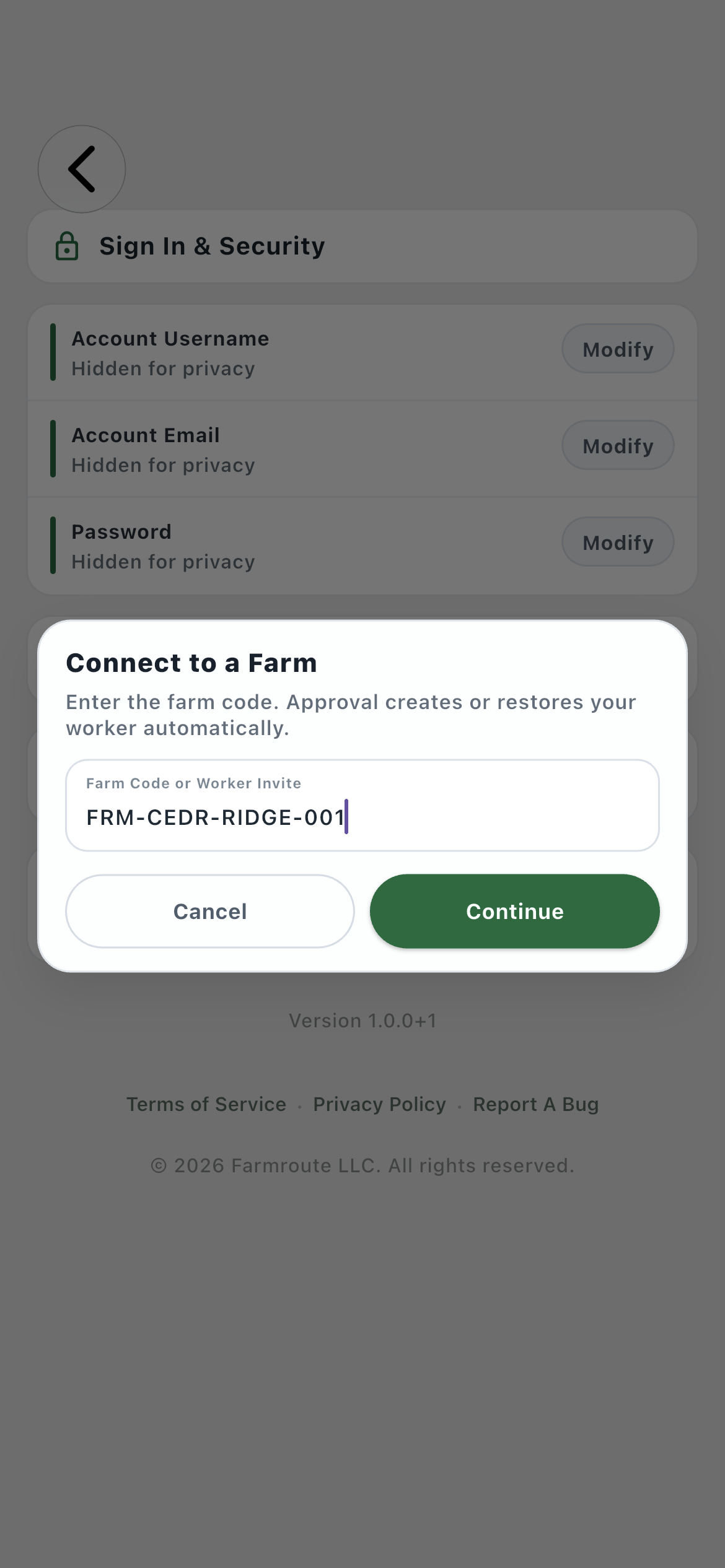
Employee entry03
An employee opens Connect to a Farm and enters the code supplied by that farm.
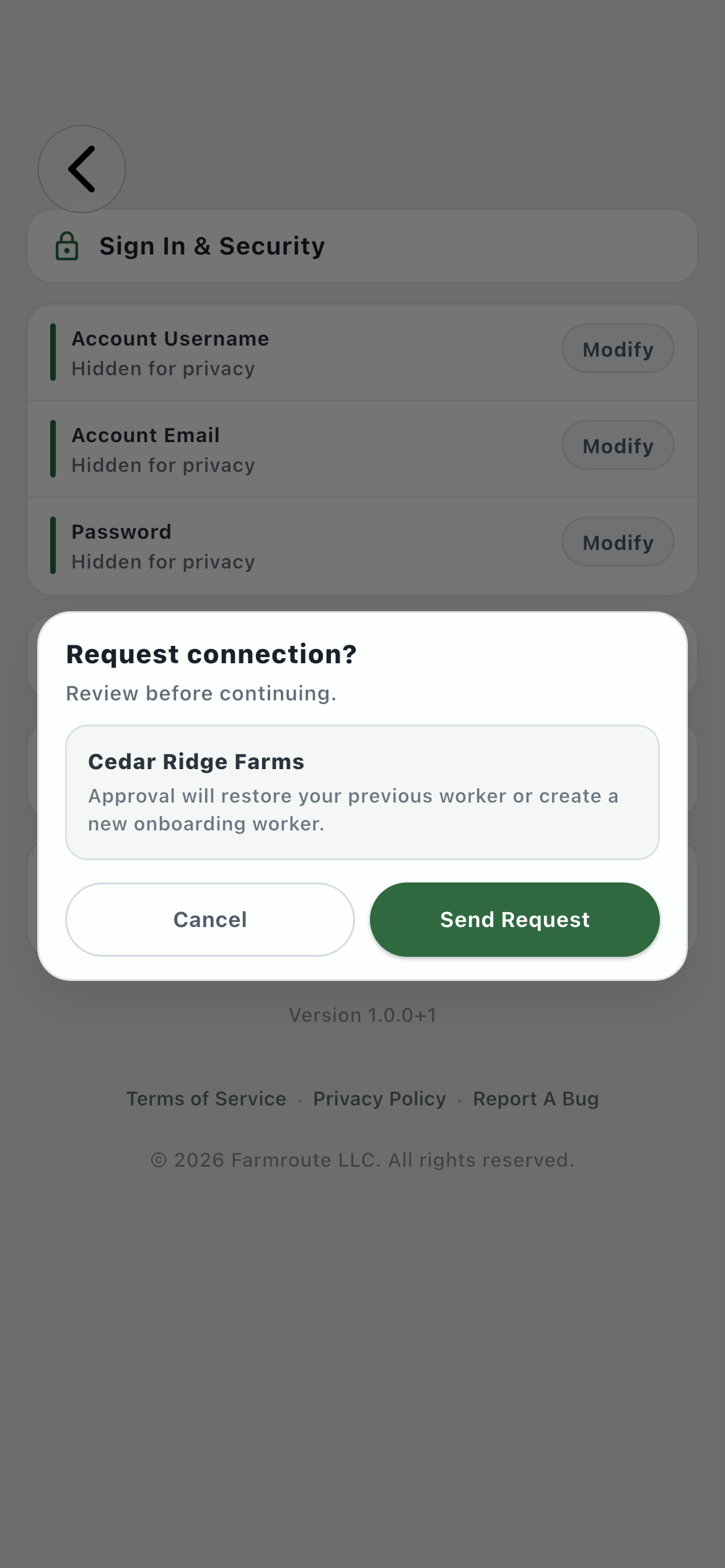
Employee confirmation04
Farmroute resolves the code first, names the farm, and explains what approval will create or restore.
Connected workforce05
After approval, both accounts receive the relationship and the worker appears in the farm’s operational workforce.
Roles and responsibility
Who does what.
Farm profile
Invite directly or approve a request.
The farm owns the employment record. It can build that record first and email the employee a targeted invite, or share its reusable Farm Code and review the employee’s request.
Email targets the worker record just created
Farm Code can be copied, shared, or rotated
Approval may match prior history or create onboarding
Employee profile
Join without inventing a worker ID.
The employee accepts the targeted invitation or enters a Farm Code from Sign In & Security. Farmroute identifies the farm before the request is sent.
Farm identity is confirmed first
The employee never assigns their own worker record
Access begins only after the relationship is approved
Complete workflow
From start to finish.
01
Path A — Farm
Create the worker and enter an email
Add the person’s identity and any initial role, request items, crew, location, pay, or date defaults. The email is optional, but including it creates a targeted employee invitation after Add Worker is completed.
02
Path A — Employee
Accept the targeted invitation
The invite points to the worker the farm already created, so the employee does not choose a worker ID or create a duplicate record.
03
Path B — Farm
Share the reusable Farm Code
Find the code under Account → Sign In & Security. It identifies the farm rather than one person and can be copied, shared, or rotated.
04
Path B — Employee
Enter the code and confirm the farm
Open Account → Sign In & Security → Connect to Farm, enter the code, review the resolved farm name, and send the request.
05
Path B — Farm
Review the pending request
Approve a genuinely new person to create a new onboarding worker, link the request to an eligible existing record, or deny it.
06
Both
Receive the approved relationship
Both profiles update after approval. Farm-scoped messages, locations, storage visibility, schedule access, and the employee’s farm-specific ID become available under that relationship.
Get started
Build your operation with Farmroute.
We pride ourselves on transparency. No need to call for a quote.